Showing posts with label Free. Show all posts

Wednesday, May 7, 2014

Better Hearing & Speech Month Quiz

It's Better Hearing and Speech Month!  Last year, I didn't get much of a chance to celebrate.  The end of the year is so wonky for me, and I was switching offices on top of it.  I'm learning that May is a crazy time of year for me, because school lets out usually in the last week (although this year we have to go a week into June due to snow days).

This year, I am starting small.  I have been using Sublime Speech's BHSM Packet.  The posters, handouts, and tip sheets are great!

I was inspired to do some advocating for our profession.  I created a quick quiz on Google Docs for my colleagues.  It covers a little bit of everything from the disorders we work with to the estimated yearly cost of voice disorders for teachers.  It's only 7 questions, so it's quick and easy to take.

Think you know everything about our profession, or want to quiz your friends/colleagues? 


If you are from IL, there's a version that includes a question that's state specific.

If you are from anywhere else in the US, here's a version for you.

Both versions have an answer key attached after you take the quiz.

Happy quiz taking/sharing! 

Friday, February 28, 2014

St. Patrick's Day Craftivity

Next week is state testing for my 3rd-5th graders.  It's a week of wonky schedules, proctoring, and pulling the kids I can when I can.  So I need an activity that is relatively easy to throw together, quick, and meaningful. Additionally, my Olympics themed bulletin board has run its course.  The social worker and I usually care for this bulletin board together, since it is outside of her office.  We have another one down the hallway that I put Mia McDonald's Idiom of the Week up.  

Say goodbye to the Olympics!

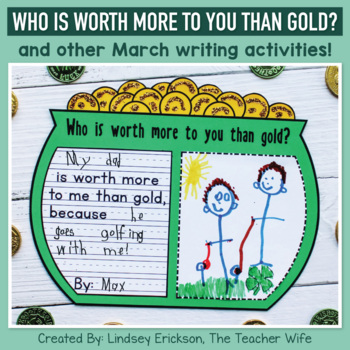
It has been a brutal winter here, so I want to start thinking Spring!  As always, thank goodness for Pinterest.  I found this cute free craftivity from The Teacher Wife.

Photo Credit to The Teacher Wife
With my 3rd grade and up groups, we could get the activity done in 20 minutes.  My K-2 kids need closer to 30 for the cutting and writing parts.  But it's a great activity to model sentences with, talk about feelings, follow directions, and really brighten someone's day.  I sent this picture to one of the teachers in my building when her 1st grader came up with this response:

Photo taken by my student. Can you see his sleeve in the corner?

If you are looking for a quick craftivity that you can use with a wide variety of students, I would strongly suggest this one.


May your day be touched
by a bit of Irish luck,
brightened by a song in your heart,
and warmed by the smiles
of the people you love.

And may we have no snow days to mess with state testing!  :)

Friday, March 15, 2013

How I am letting go of Google Reader

A goodbye to Google Reader
The thing I use on the internet most frequently (aside from Pinterest!) is Google Reader.  I have been using it since it "graduated" from the Google Labs in 2007, and while I have amassed quite a collection of now-defunct blogs along the way, it is the main way I get my local news, keep up with SLP blogs, webcomics, and keep up with quite a few other personal blogs along the way.I haven't loved all the changes along the way, but by far, the time it saved me or the amount of information I could gather outweighed all the disagreements we had along the way.

So, when Google announced this week that Reader will be vanishing come July 1, I was heartbroken.  And the outcry from my friends was loud and fierce.  How could Google say this service is declining in usage, when Twitter exploded as the news broke?  What would we do? How would I get my local news  update and follow it with laughing 'til it hurts with The Bloggess (mild language warning, but seriously awesome!)? Not to mention the 80 or so SLP blogs I try to keep up with?


I currently use Newsify on my iPad, but it is not Android compatible, doesn't have a web presence, and it doesn't seem to actually be a full-blown reader, so much as a fancier way to view the things you already subscribe to on Google Reader.  With Google Reader disappearing, I need a way to switch over the information stored on the Google Cloud to a different server without having to manually add each blog again.


From what I have read, the front runner in the replacement of gReader is Feedly.  Feedly is a bit like Newsify in that it is more of a magazine style reader.  But it is compatible with Google Reader, so switching over is seamless.  And, according to what I've read, they promise that by the time gReader shuts down, users will be able to automatically have their data from gReader switch over to the Feedly cloud servers.  It's also web, Android and iOs friendly, which was a criteria for me, since I use all three. Feedly is also free on all devices, which while not a criteria for me, was certainly a perk, especially as I was looking for what to head to next.


As you can see from my examples, the screen is more visually based than list-based.  Really good if you are good at keeping up with your subscriptions, but I haven't decided how it is if you are like me, and have a weekly goal to dip under 1000 unread items, because you pick and choose what to read, and "mark all read" the rest. With only 4-6 stories per screen (swipe up for more screens), it takes quite a bit of shuffling to get through some of my feeds, like news headlines, that might update with 20 new headlines a morning. I do appreciate that Feedly is VERY user friendly, and pretty intuitive, to boot. 

Aside from one for SLP blogs, I don't really use folders in gReader.  The blogs that don't update don't show up, so I've just let all the blogs hang out in one list, and I just go through the alphabetical list.  From first glance, I think Feedly encourages more specialization and organizing, which is a bit of a daunting task, but do-able. It is super easy with the web version (I haven't really looked into the how to do it on my iPad or Droid, because the click and drag was so easy on the web).  But I LOVE that each new folder is a different color.


I think it will take some getting used to, but so far, I am happy with Feedly's offerings.  They are also apparently a small 10 person team, who have been working their tails off since the announcement Wednesday, and I appreciate that.


If you are a die-hard Google devotee, there are a few petitions out there that are encouraging Google to reconsider.  KeepGoogleReader.com is encouraging the company to keep the Reader.  Barring that, they ask that the code be opened to the public so that other companies like Newsify and Flipboard that rely on the information stored on the Google Cloud to present the feeds in a different way don't go under with gReader.  Change.org has a petition to keep Google Reader, which throws back to when you could comment on articles and share them easily with a small group, a time which I remember fondly.

Tuesday, January 15, 2013

Using Audiobooks


I love using books in treatment.  I have a few different activities that go along with specific books (Where the Wild Things Are, Stroga Nona, The Wednesday Story, etc.).

Sometimes, I just get tired of reading the same book for each group. And my students probably get tired of me reading to them all the time.  So in an effort to save my voice and add some interest, I've started to use some audiobooks.  It's great to pop in an audiobook and press play.  It's easy to pause them for questions, and the students love hearing the stories.  When I am doing a theme book (I usually do Cloudy with A Chance of Meatballs in the spring, for example), it's great to check out an audiobook from the library for a few weeks.

Now, not all stories have audiobook offerings.  For those books, I like to turn to YouTube.


I use the app on my iPad, and it's easy to save books I use regularly so I don't have to hunt every time.  To prevent ads from popping up, I usually make the video full screen.

Here's a video of Where the Wild Things Are:


And one for Cloudy with a Chance of Meatballs:

I usually like to follow along in the book while it is playing, because as you can see, some videos illustrate as it happens, but other books don't.

The other nice thing about using the audiobook version, is that I have a pretty good idea of how much time reading the story will take, which can help with lesson planning.

A coworker of mine went to a training last year, which advocated using audiobooks for kids with auditory processing disorders and for those with ADHD to increase audio training.  I suggest audiobooks regularly to some of my parents, but often they think it means a separate trip to the library and additional hassle or added cost by downloading audiobooks. This can be a faster way for parents to get the same outcome.  I like Tumblebooks (check your local library or school, many have a subscription) for the same reason.

*I get nothing for mentioning this app, by the way. I just like sharing useful apps that save me time/effort.

Monday, December 3, 2012

Free App Monday: QR Readers

QRCode
Use a QR reader to see what I say!


As I mentioned in Friday's post, my principal gave a presentation last week on the use of QR codes.  For those that are not familiar with them, QR codes work sort of in the same way that barcodes do: each one is unique and is linked to a specific website, piece of text, video, phone number, etc.

You may have seen codes like this on businesses and flyers.  They can be used for pretty much anything, and are a great way to get more information out there without taking up a lot of text space.  Just put a QR code somewhere and the technologically savvy among us can scan it for more info.

I've even heard that some people are using them on business cards to link to personal social networking (LinkedIn for individuals, Facebook for companies), and even on resumes!

The question, of course, becomes, "what do I do to get one of those funky things read?"  Lucky for us, the answer is easy, and free!

  The app I use for my iPad is the QR Reader.   It's pretty user-friendly and intuitive.  It also works for barcodes, which means if you have an app like LibraryThing to catalog your classroom books, you can avoid entering each book manually, and scan it instead.  One thing I have found is that you need a) decent light and b) to make sure you are far enough back that the code doesn't quite fit in the box. If you line it up exactly, or are too close, it has a hard time reading it.

I have an android phone, and the app that I use for that is called Barcode Scanner.  It's another 2-for-1 deal in that it obviously does barcodes, but also does QR codes.  I have found that the light is even more important for this one.

If you want to try giving the QR codes a shot in the classroom, try my Joke of the Day freebie on TpT.

I premiered it today, and my students LOVED being able to guess the answer and then check it with the scanner.  I think this might be something that can be quite the reward!

Monday, November 26, 2012

Monday App: The Guardian Eyewitness

Hope everyone had a wonderful Thanskgiving break.  My 4 days off were lovely.  I could definitely use more long weekends!

I've mentioned how I love free apps, before, right?  And how I am always looking for relevant information to work with my students on?  I am not a huge fan of straight up workbooks and vocab cards, so I try to find things that better reflect what's happening in the world.

They say a picture is worth a thousand words, right?  Enter: The Guardian Eyewitness.

Hands down, this is my go-to for inferencing work.  I use the pictures to talk about the differences between an observation, inference, and prediction.  We then practice using those skills.  The app has  a picture of the day gallery (screen them first- in the past I have seen tribes with topless women, flag burning, and  violent moments), which gives plenty of choices.  Each picture has a caption, which gives information about the picture, but I usually like the students to try and figure out as much as possible, then compare their response to the caption at the end.The app also allows students to zoom in for detail, which some really like.

In recent weeks, I've used it as a launching off point to talk about Sandy, and the East Coast especially with my middle schoolers.  It's hard for my students to really understand some of the devastation, because they have no frame of reference.  So taking the time to look at pictures, talk about what was happening, and apply this all to something that is happening right now has been really beneficial for some of them.

Do you have any good pictures from online that you use for inferencing?

Monday, November 19, 2012

Monday App: TED Talks


I am a HUGE fan of TED talks in my daily life.  I find the topics fascinating, and the speakers to be a mixture of entertaining and brilliant.  I am (like most SLPs, I think) someone who collects information.  I am intrigued by how the brain works*, and so much of what they talk about has to do with just that.  If you have spare time, there are some great talks by Dr. Jill Bolte Taylor about her experience of having a stroke and Jane McGonigal, who talks about how video games can change our world.  There's also a very funny talk about making a toaster.  I mean, there are hundreds of really interesting ideas on there, so do take some time to check it out.

You are probably wondering where I am going with this.

Well, I have a bunch of students that work on comprehension.  As much as I love reading aloud all day, every day, I try to find different materials to comprehend.  After all, my students are expected to sit through teachers talking in class, and comprehend information ALL DAY.  So listening to different speakers and learning about different topics is a good way to practice.

Enter the TED app, which is a free app that you can add to your iPad (or go to the website via computer).  There are a few nice features about the app: first, you can save talks, so you can find them easily for different groups.  Second, you can use the "inspire me" button to find short talks in a genre (looking for something persuasive? informative? funny?).

My students typically respond well to the talks.  I typically aim for the ones that are under 5 minutes, and then I'll ask inferential, concrete or prediction questions afterwards.  We might define words based on the context, or take a look at what was funny/why it was.  I usually use this with my 5th-8th grade crowd, and always screen first for too much technical language.

Here are my 3 favorite talks to get you started:
1. Thomas Suarez: A 12-year-old app developer.  My students love the idea that a 12 year old can design apps.  We talk about the apps this kid has designed, the steps he outlines in the talk, and how he has applied his skills to his school.  I've also used it as a launching point to talk about setting goals, we infer how we think he is treated at school (seen as a nerd vs. seen as someone cool because he can do what he does), and try to predict what he might do next. Some kids come up with pretty neat app ideas that they would want to create.

2. Joe Smith: How to use a paper towel.  This is a short piece on, well, exactly what it sounds like.  But it blows student's minds, and I'd like to think I am doing my part to save the planet while working on speech.  You know, two birds and all.  

3. Mark Bezos: A life lesson from a volunteer firefighter. This is a great talk for inferring.  It's also good for problem solving, and acts as a launching point for what things you would grab if there was a fire, what your family safety plan is, who you would call, etc.  


Have you used TED talks?  Got any ones I should find?  
Do you use something else for listening comprehension that your students like? 

*I once apologized to my college advisor, because I spent 4 years avoiding a neuroscience class, and completed my psychology degree without it.  When I got to grad school and ended up in 5 semesters of neuro classes and was the graduate TA who took over the undergrad class while the professor was on maternity leave? Yea, I felt it necessary to email my undergrad advisor to apologize.

Monday, November 5, 2012

Monday App: Common Core Standards

Ah, the Common Core.  The pages and pages of .pdf that I flip through on the internet.  The document I have printed for each office so I can cross check before I write goals. Oh, the time I have spent with you, Common Core Standards!

So, when I was perusing the App Store and came across the Common Core Standards App by Mastery Connect?  I was thrilled. 

 As you can see below from the handy dandy widget, the standards are organized by the common core areas, then by grade level.  It's SO much faster for me to look up standards now.  Try it out here if you want:


 And I almost forgot! This fabulous  app is FREE!  Wahoo!

Stay tuned for Wednesday, when I share a material that makes looking up Common Core Standards even faster & easier.  Between these two things, you'll spend less time sifting and more time using exactly what you need.

What Common Core shortcuts do you use?

Monday, October 22, 2012

My Apps Monday

Some of my middle schoolers are...not thrilled about coming to speech.  I have to pull most of my students from their study hall, which means that they miss out on the chance to get their homework done before they go home.  Plus, many have been in speech for at least 6 years, and they know what's hard for them.  Working on things that are hard for them isn't exactly fun, and I get that.

Typically, I have 1-2 activities planned for the session, and if we have time, the last few minutes can go to homework.  For some students with vocabulary needs, I might scrap my activity if they have work that is vocab heavy that we can incorporate.  This year, I was lucky enough to not have to pull many students from different teams at the same time, so I don't have to worry about groups that aren't working on the same material.

My favorite app to use lately for my vocab kids has been the (free) Flashcards+ app
 

Having kids come straight to my room after lunch instead of study hall means the incidence of forgotten text books is pretty high.  Rather than wasting 10 minutes sending the student back to his/her locker for a textbook, I find out what they are learning about in science or social studies, and *boom* flashcards readily available.

How, you ask?  Well, Flashcards+ has a button in the bottom right corner that lets you add a deck from Course Hero or Quizlet. So, my seventh graders that were studying the atmosphere last week?  I put in atmosphere and got a bunch of choices. You can preview first to see if the words are familiar (my kids like to check fist so they aren't being quizzed on words they don't know).  A quick easy (and free!) download, and the deck is yours. When they changed to the water cycle this week, it was a very easy to get a new deck (the water cycle was also a great thing for my fluency and artic students to talk about).   The thirteen colonies?  Easy peasy.  Downloading the deck is almost instantaneous, which is good, because we have a terribly SLOW wifi connection.

Each card has the word on one side, and a swipe to the side flips it for the definition.   There is a check mark, so you can check the ones the students know and leave the others unchecked. You can chose to practice only the unchecked ones if you want to go back at the end to run through the ones the students struggled with.  Swipe down for the next card.

Of course, I could make my own cards when/if I need them using the app.  However, with how quickly topics change in the middle school setting, I love the fact that there are other people who have already done that and that it's fast an easy to generate relevant material. They also have idioms and other figurative language terms.

Most of the vocab that I have found tends to lean towards middle school through high school group.  I haven't found much for my elementary kids, but I haven't done extensive work to find it, either.  You can't add pictures, so it's text heavy.

Have any great decks from Flashcards+ that I should look for?

**I am not getting anything for mentioning this app.  It is, after all, only my second post.  But I always appreciate hearing about apps that are user friendly, and even better if they are free!**